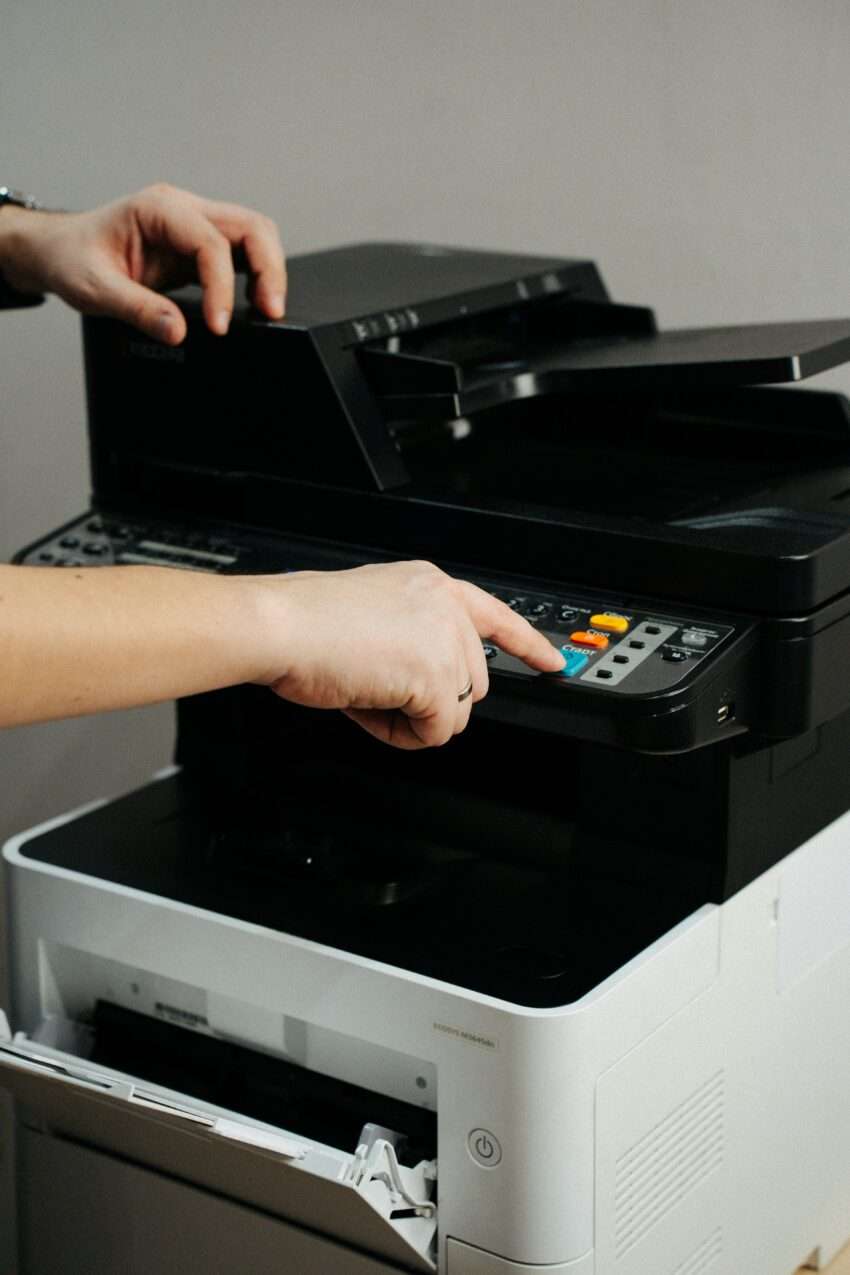
It never fails: you have a high-stakes meeting in ten minutes, the final deck needs to be in hand, and the office printer suddenly decides to go on strike. For most of us, a flashing red light on a multifunction device is the ultimate stress trigger. We’ve all been there, staring at an cryptic error code that feels more like a riddle than a diagnostic tool. While modern hardware has become more intuitive, printers remain one of the most mechanically complex pieces of equipment in the workplace.
When these machines stall, the productivity of the entire department can grind to a halt. If your office is currently running without a dedicated IT backup to handle hardware meltdowns, knowing how to navigate these digital hiccups on your own is a vital survival skill. Most common printer issues aren’t actually terminal; they are usually the result of a communication breakdown between the software and the hardware that can be resolved with a few logical steps.
The “Ghost” Paper Jam
The most frequent interruption is the dreaded paper jam. However, it is incredibly frustrating when you open every panel, find no paper, yet the error persists. This is often caused by a tiny scrap of paper—sometimes no larger than a fingernail—stuck on a sensor.
When clearing a jam, always pull the paper in the direction of the natural paper path. Pulling against the rollers can misalign the internal gears or leave those tiny tears behind that trigger “ghost” jams. If the path looks clear but the error remains, use a can of compressed air to blow out any dust or microscopic debris from the optical sensors.
Resolving Connection Dropouts
In an era of wireless offices, “Printer Not Found” is a common headache. Before you start reinstalling drivers, perform a quick power cycle—but do it correctly. Turn off the printer, unplug it from the wall, and wait at least 30 seconds. This allows the internal capacitors to discharge completely, clearing the temporary memory.
If the printer is on the network but your computer can’t see it, check the IP address. Sometimes, a router reboot causes the printer to be assigned a new internal address, “breaking” the link to your saved printer settings. You can find the current address by printing a “Network Configuration Page” directly from the device’s physical menu. For those managing complex office networks, resources like the IEEE Standards Association provide deeper insights into the networking protocols that govern how these devices communicate across local loops.
Solving Image Quality Issues
If your documents are coming out with streaks, faded text, or strange horizontal lines, the culprit is usually the “consumables.”
- Faded Text: This is rarely just “low ink.” It is often a clogged print head. Most modern printers have a built-in cleaning cycle accessible through the maintenance menu. Running this once or twice can dissolve dried ink that is blocking the nozzles.
- Streaks or Spots: If you are using a laser printer, streaks often mean the drum unit is scratched or the “waste toner box” is full. If the spots appear in the same place on every page, there might be a physical smudge on the scanner glass or the fuser roller. A soft, lint-free cloth and a tiny bit of isopropyl alcohol can usually fix this.
The Print Queue Bottleneck
Sometimes the hardware is fine, but the “brain” is overloaded. If you’ve clicked “print” five times and nothing is happening, you likely have a corrupted print job stuck in the Windows or macOS spooler.
Instead of clicking print again, go into your computer’s services and “Clear Print Spooler.” This wipes the temporary memory of pending jobs and allows you to start fresh. This is a much cleaner solution than simply restarting the computer, which doesn’t always clear the stuck data packet sitting in the printer’s buffer.
Managing Driver Conflicts
Operating system updates are notorious for breaking printer functionality. If your printer suddenly stops supporting double-sided printing or color options after a computer update, your driver is likely outdated.
Always source your drivers directly from the manufacturer’s support page rather than relying on the “generic” drivers that your operating system installs automatically. Generic drivers are fine for basic text, but they often lack the “handshake” protocols required for finishing features like stapling, hole-punching, or high-resolution photo rendering. The Computing Technology Industry Association (CompTIA) offers excellent white papers on hardware-software compatibility that explain why these driver mismatches occur so frequently in mixed-device environments.
Proactive Maintenance
The best way to fix a printer problem is to prevent it from happening on a Monday morning. Using high-quality paper—not the bargain-bin reams that produce excessive paper dust—can extend the life of your rollers by years. Similarly, keeping the printer away from high-traffic, dusty areas or direct heat sources prevents the ink and toner from behaving unpredictably.
By approaching these machines with a bit of patience and a systematic checklist, you can resolve about 90% of office printing frustrations without needing to call for professional help.
Keeping the Workflow Moving
Mastering the basics of printer troubleshooting keeps your office efficient and reduces the “tech rage” that often accompanies a deadline. However, if you find yourself clearing the same jam every single day, it might be a sign of mechanical wear that a simple reboot can’t fix.
